

AI image generators have made it possible to turn a simple written idea into digital artwork within minutes. Instead of learning complex illustration or photo-editing software, you can describe what you want to see and let an AI model interpret your instructions.
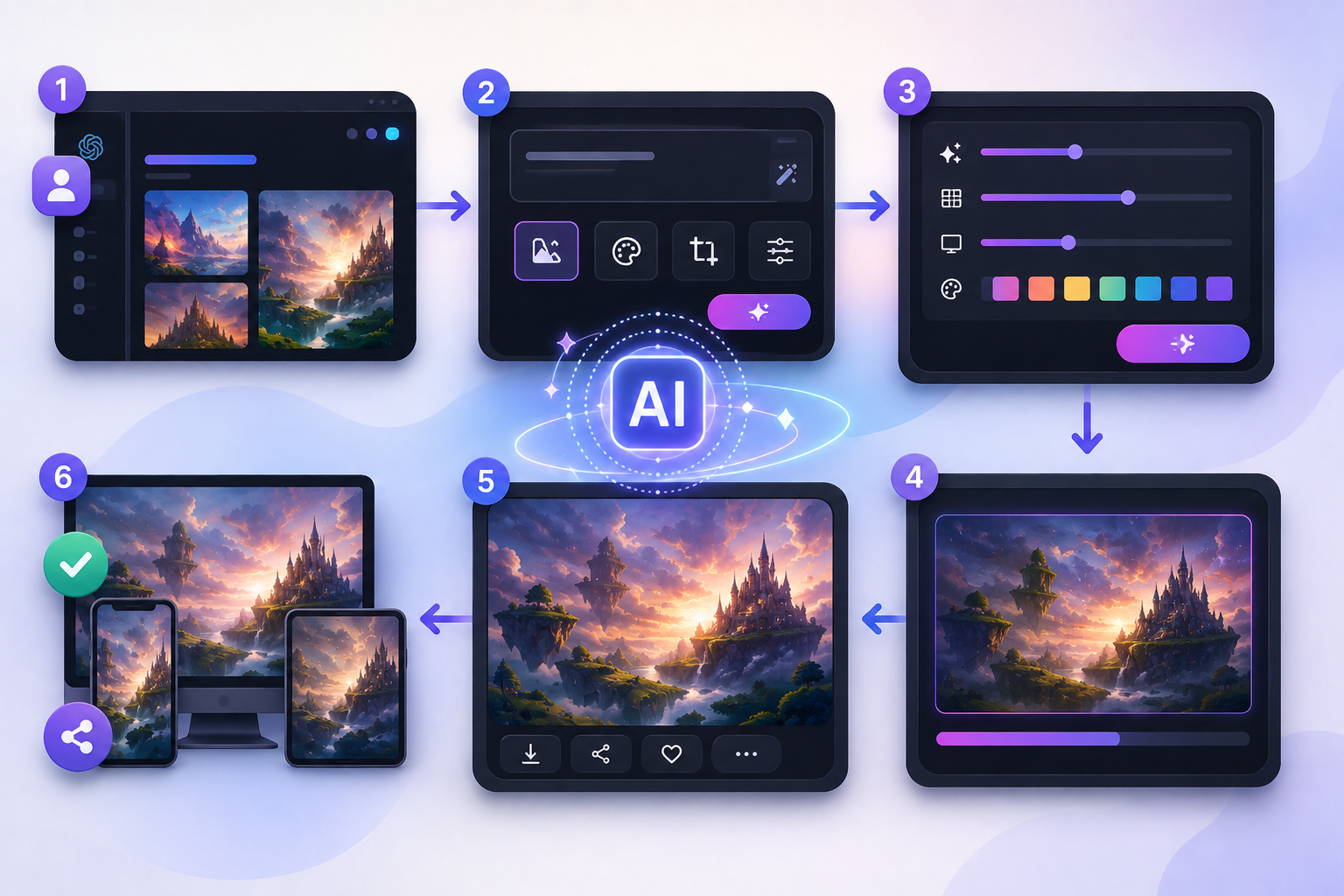
If you’re wondering how to use OpenDream AI Art Generator, the basic process involves entering a detailed text prompt, choosing the available image settings or style, generating the artwork, and refining your prompt until you get the desired result.
However, getting a good AI-generated image is different from simply generating an image. Prompt structure, descriptive language, composition, lighting, style choices, and repeated refinement can significantly affect the final output.
This guide explains the process from a practical, beginner-friendly perspective, including prompt examples, common mistakes, and techniques for producing better AI art.
What Is OpenDream AI Art Generator?
OpenDream AI Art Generator is an AI-powered image creation tool designed to transform text descriptions into visual artwork. A user provides instructions—commonly called a prompt—describing the desired subject, environment, style, colors, lighting, mood, or composition.
For example, a basic prompt might be:
“A futuristic city at night.”
The AI interprets the description and attempts to create an image matching it.
A more descriptive prompt such as:
“A futuristic city at night, towering glass skyscrapers, neon signs, rain-covered streets, cinematic lighting, wide-angle composition.”
provides considerably more visual information for the generator to interpret.
This difference illustrates one of the most important principles of AI image generation: the quality and specificity of your instructions can strongly influence the usefulness of the result.
How Does OpenDream AI Art Work?
AI art generators use machine-learning models trained to recognize relationships between language and visual concepts. When you enter a prompt, the system interprets the words and attempts to construct an image corresponding to those concepts.
The workflow can be simplified as:
Your idea → Text prompt → AI processing → Generated image → Prompt refinement
The generator isn’t thinking about the scene in the same way a human illustrator would. It is responding to patterns and concepts represented in its model. Therefore, vague prompts can produce unpredictable results.
Providing clear details gives the system more direction.
How to Use OpenDream AI Art Generator Step by Step
The exact interface and available controls may change as the platform is updated, but the general text-to-image workflow is straightforward.
Step 1: Decide What You Want to Create
Before writing your prompt, establish the basic idea.
Consider five elements:
- Subject: What should appear?
- Setting: Where is the subject?
- Style: What should the image look like?
- Lighting: How should the scene be illuminated?
- Composition: How should everything be positioned?
For example, instead of starting with “a dog,” determine that you want:
A golden retriever sitting beside a mountain lake at sunrise.
You now have enough information to begin constructing a useful prompt.
Step 2: Write Your First Prompt
Enter a clear description of your desired image into the prompt field.
A useful beginner formula is:
Subject + action + environment + visual style + lighting + composition + important details
For example:
“A golden retriever sitting beside a peaceful mountain lake at sunrise, realistic photography, warm natural light, mountains reflected in the water, detailed fur, wide-angle composition.”
You don’t necessarily need an extremely long prompt. The goal is to provide relevant visual information without filling the prompt with unrelated adjectives.
Step 3: Choose the Appropriate Style and Settings
Depending on the version of OpenDream you are using, you may see options related to image style or generation settings.
Choose options that support the intended result rather than selecting settings randomly.
For example:
| Goal | Suitable Visual Direction |
| Portrait | Realistic or photographic |
| Fantasy character | Fantasy/digital illustration |
| Anime character | Anime-inspired illustration |
| Product concept | Studio/product photography |
| Landscape | Realistic or cinematic |
| Children’s illustration | Colorful illustrated style |
| Concept art | Digital/concept artwork |
Available options can change over time, so treat the controls displayed in the current interface as the authoritative source for what the platform presently supports.
Step 4: Generate the Image
Once your prompt and available settings are ready, start the generation.
Review the result rather than immediately accepting the first image.
Ask yourself:
- Is the main subject correct?
- Does the composition match the request?
- Is the lighting appropriate?
- Are important objects missing?
- Is the visual style consistent?
- Are there obvious anatomical or structural problems?
AI image creation frequently requires several attempts.
Step 5: Refine Your Prompt
Prompt refinement is one of the most useful skills when learning how to use OpenDream AI Art Generator.
Suppose you begin with:
“A luxury house in the mountains.”
The result might technically satisfy your request while still looking generic.
You could improve the prompt to:
“Modern luxury mountain villa surrounded by pine trees, floor-to-ceiling glass windows, stone exterior, snow-covered mountains in the background, golden-hour sunlight, realistic architectural photography, wide-angle view.”
The revised version establishes the architecture, surroundings, materials, time of day, lighting, visual treatment, and camera perspective.
Instead of changing everything after an unsuccessful generation, adjust one or two elements at a time. This makes it easier to understand which instructions are affecting your results.
How to Write Better OpenDream AI Art Prompts
Prompt writing is usually the biggest difference between inconsistent experimentation and repeatable image generation.
1. Identify the Main Subject
Start with the most important element.
Instead of:
“Something futuristic and beautiful.”
Try:
“A futuristic electric motorcycle.”
The second prompt gives the AI a specific visual subject.
2. Describe the Environment
Tell the generator where the scene takes place.
For example:
“A futuristic electric motorcycle parked on a neon-lit Tokyo-inspired street at night.”
The environment provides context and can dramatically change the composition.
3. Specify the Visual Direction
Useful descriptions might include:
- Photorealistic
- Digital illustration
- Watercolor
- Pencil sketch
- Minimalist
- Cinematic
- Fantasy concept art
- 3D render
- Editorial photography
Use descriptions that genuinely contribute to the intended appearance.
4. Add Lighting
Lighting can completely alter the mood of an image.
Consider terms such as:
soft natural light, golden-hour lighting, dramatic side lighting, studio lighting, overcast daylight, warm interior lighting, moonlight, or cinematic lighting.
For example:
“Portrait of an elderly fisherman near the ocean, weathered face, realistic photography, soft morning sunlight, shallow depth of field.”
5. Define the Composition
Composition tells the model how you want the scene presented.
Useful terms include:
- Close-up
- Full-body
- Wide shot
- Eye-level
- Top-down view
- Centered composition
- Symmetrical composition
- Macro shot
- Low-angle view
If your subject repeatedly appears too close or too far away, composition instructions can help.
OpenDream AI Art Prompt Examples
Here are several starting points that demonstrate different prompt structures.
Realistic Portrait
“Realistic portrait of a young chef standing in a professional restaurant kitchen, white chef jacket, soft window light, natural expression, shallow depth of field, editorial photography.”
Fantasy Artwork
“Ancient floating castle above a misty valley, waterfalls falling from floating islands, dramatic clouds, sunrise, detailed fantasy concept art, epic wide-angle composition.”
Product Concept
“Minimalist black smartwatch on a clean studio surface, soft shadows, premium product photography, controlled studio lighting, front three-quarter view.”
Landscape
“Peaceful alpine lake surrounded by snow-covered mountains, early morning mist, clear reflections, natural sunrise lighting, realistic landscape photography, panoramic composition.”
Futuristic Scene
“Futuristic research station on Mars, astronauts walking toward the entrance, red desert landscape, distant mountains, realistic science-fiction concept art, cinematic lighting, wide shot.”
These prompts should be treated as starting points rather than guaranteed formulas. AI-generated results can vary even when similar instructions are used.
Common OpenDream AI Art Mistakes to Avoid
Using Extremely Short Prompts
“Beautiful house” leaves most creative decisions to the generator.
Describe the architecture, environment, lighting, perspective, and desired visual treatment when those details matter.
Adding Too Many Conflicting Instructions
More words do not automatically produce better images.
A prompt requesting something simultaneously “minimalist, extremely detailed, photorealistic, cartoon, watercolor, cyberpunk and vintage” can create conflicting visual directions.
Prioritize a coherent concept.
Expecting Perfect Results on the First Attempt
AI generation is iterative.
A practical workflow is:
Generate → Inspect → Identify the problem → Modify the prompt → Generate again.
This process is generally more effective than repeatedly submitting an unchanged prompt.
Ignoring Composition
Users often describe the object thoroughly but forget how it should appear within the frame.
Adding instructions such as “close-up portrait,” “full-body view,” or “wide architectural photograph” can give the generator much clearer guidance.
Expecting Perfect Text Inside Images
AI image models can sometimes struggle with precise spelling, typography, logos, labels, and other text-heavy elements.
For projects where exact wording matters, a practical workflow is to generate the visual first and add final typography separately using a dedicated design or image-editing application.
OpenDream AI Art for Different Types of Users
The tool can potentially support several creative workflows.
Content creators can experiment with visual concepts for posts, thumbnails, backgrounds, or campaign ideas.
Designers can use AI-generated images during brainstorming and early concept development before creating polished assets.
Writers can visualize fictional locations, characters, environments, or scenes to support ideation.
Marketers can explore advertising concepts, mood boards, and campaign directions before producing final commercial assets.
Beginners can experiment with visual creation without first mastering traditional illustration software.
AI output should still be reviewed carefully, particularly when it will be used publicly or commercially.
Can You Use OpenDream AI Art for Commercial Projects?
Do not assume that every generated image automatically comes with unrestricted commercial rights.
Before using an OpenDream-generated image for advertising, client work, merchandise, publishing, branding, or another commercial purpose, review the platform’s current Terms of Service, licensing provisions, and usage policies.
Terms can change, and rights may depend on factors such as your account type, the platform’s current policies, and the material included in your prompt or output.
You should also avoid assuming that AI generation overrides third-party rights. Trademarks, copyrighted characters, protected artwork, recognizable people, and other protected material can create additional legal considerations.
How to Get Better Results From OpenDream AI Art
A reliable improvement process is to treat prompting as structured experimentation.
Start with a clear subject and then add only the details that matter.
For example:
Basic:
“Sports car.”
Better:
“Red sports car driving on a mountain road.”
More controlled:
“Red sports car driving along a winding mountain road at sunset, realistic automotive photography, warm golden light, dynamic low-angle perspective, distant mountains.”
Notice that every addition serves a purpose.
The prompt becomes more detailed without becoming unnecessarily complicated.
Keeping a record of successful prompt structures can also help. If a particular combination of lighting, composition, and descriptive terms consistently produces useful results, reuse that structure for similar projects.
Is OpenDream AI Art Suitable for Beginners?
The text-to-image workflow can be accessible to beginners because you don’t need traditional drawing skills to begin experimenting.
However, creating consistently strong images still requires practice.
The most useful skills to develop are:
clear visual thinking, descriptive prompt writing, composition awareness, style selection, critical evaluation, and iterative refinement.
AI tools reduce the technical barrier to image generation, but creative judgment remains important.
Frequently Asked Questions
What is OpenDream AI Art Generator?
OpenDream AI Art Generator is an AI-based image-generation tool that can interpret text prompts and turn them into visual artwork.
How do I use OpenDream AI Art Generator?
Start by describing the image you want, select relevant options available in the interface, generate the image, evaluate the result, and refine your prompt when necessary.
How can I write a good OpenDream AI prompt?
Describe the subject, environment, visual style, lighting, composition, and important details. Keep the instructions specific and internally consistent.
Can beginners use OpenDream AI Art?
Yes. Beginners can start with simple prompts and gradually add details such as lighting, environment, camera perspective, and artistic direction as they become more familiar with image generation.
Why doesn’t my AI image match my prompt?
The prompt may be too vague, overly complicated, or contain conflicting instructions. Simplify the concept, clarify the most important details, and refine the prompt through multiple generations.
Can OpenDream AI Art create realistic images?
AI image generators can produce realistic-looking visuals when given appropriate prompts and when the underlying model supports that style. Results vary, so realistic outputs may still contain visual inconsistencies that require review.
Is OpenDream AI Art free?
Pricing, free-generation limits, credits, and plan features can change. Check OpenDream’s current pricing or account interface for the latest information rather than relying on older third-party descriptions.
Can I use OpenDream AI-generated images commercially?
Commercial usage depends on the platform’s current licensing terms and the content involved. Review OpenDream’s latest terms before using generated images commercially.
Conclusion
Learning how to use OpenDream AI Art Generator is largely about learning how to communicate a visual idea clearly. Start with a defined subject, describe the setting and visual direction, specify important lighting or composition details, and then generate your image.
More importantly, don’t treat the first result as the final result. Review what the AI produced, identify what needs improvement, and modify your prompt deliberately.
A simple structure such as subject + environment + style + lighting + composition + key details provides a strong starting point for beginners. As you gain experience, you can develop reusable prompt structures for portraits, landscapes, product concepts, fantasy scenes, and other creative projects.
AI can accelerate image creation, but the user’s creative direction, judgment, and refinement remain central to producing useful artwork.