



If you have noticed wmiprvse.exe running in Windows Task Manager, you might wonder what it does, why it is using system resources, and whether it is safe to keep running. The unfamiliar process name can look suspicious, especially when it appears multiple times or consumes more CPU or memory than expected.
The good news is that wmiprvse.exe is generally a legitimate Windows system process. It is associated with Windows Management Instrumentation (WMI), a built-in technology that allows Windows and other applications to monitor system information, manage hardware, and perform administrative tasks.
However, like other Windows processes, its presence does not automatically guarantee that every instance is genuine. Malware can sometimes use familiar system process names to avoid attracting attention.
In this guide, we will explain what wmiprvse.exe does, why it runs in the background, how to check whether it is legitimate, and what to do if it causes high CPU or memory usage.
What Is wmiprvse.exe in Windows?
wmiprvse.exe, also known as WMI Provider Host, is a legitimate Windows executable that runs as part of the Windows Management Instrumentation service.
WMI provides a standard way for Windows components, administrators, and third-party applications to access information about the operating system and connected hardware.
For example, when a system monitoring application checks your processor temperature, available memory, running services, or storage information, it may use WMI to retrieve the required data.
The wmiprvse.exe process hosts WMI providers, which handle requests for this information.
Unlike applications that you open manually, this process normally operates in the background. It can start automatically when Windows or another application needs information from a WMI provider.
Why Is wmiprvse.exe Running in Task Manager?
Seeing wmiprvse.exe in Task Manager is usually normal. Windows relies on WMI for several management and monitoring activities, so the process may run even when you are not actively using administrative tools.
Common reasons include:
| Reason | Explanation |
| Windows system monitoring | Windows uses WMI to collect information about system performance and hardware. |
| Hardware management | WMI providers help applications retrieve details about processors, storage devices, and other components. |
| Security software | Antivirus and endpoint protection applications may use WMI to monitor system information. |
| Third-party applications | Monitoring tools, hardware utilities, and system management software can send WMI requests. |
| IT administration | Network administrators use WMI to monitor and manage Windows computers remotely. |
| Windows background tasks | Certain operating system components use WMI to retrieve information required for routine operations. |
It is also possible to see more than one wmiprvse.exe process in Task Manager. This does not necessarily indicate a problem because Windows can run different WMI provider processes under separate hosting configurations.
Is wmiprvse.exe a Virus or Legitimate Windows Process?
In most cases, wmiprvse.exe is a safe Windows component. However, malicious programs can sometimes imitate legitimate Windows executable names to make themselves appear trustworthy.
The best way to determine whether the process is genuine is to check its file location, digital signature, and system behavior.
How to Check Whether wmiprvse.exe Is Genuine
Follow these steps to inspect the process:
- Press Ctrl + Shift + Esc to open Task Manager.
- Select the Details tab.
- Find wmiprvse.exe in the process list.
- Right-click the process and select Open file location.
- Check the folder where the executable is stored.
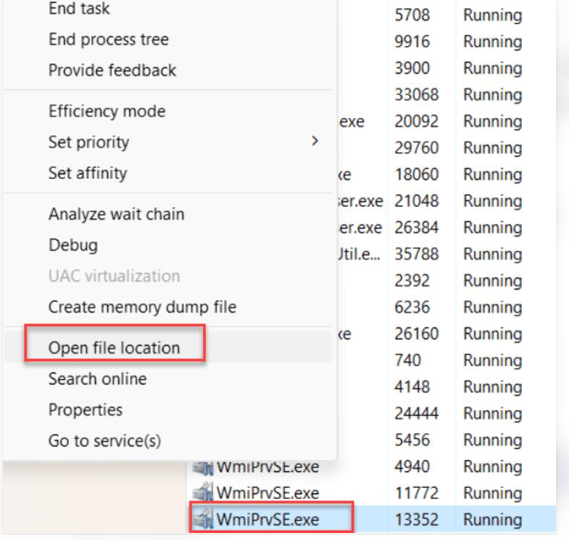
The legitimate Windows WMI Provider Host executable is normally located in:
C:\Windows\System32\wbem\WmiPrvSE.exe
On some 64-bit Windows installations, a legitimate 32-bit instance may also run from the corresponding SysWOW64\wbem directory.
You can also check its digital signature:
- Right-click the executable file.
- Select Properties.
- Open the Digital Signatures tab, if available.
- Check whether the signature identifies Microsoft Windows as the signer.
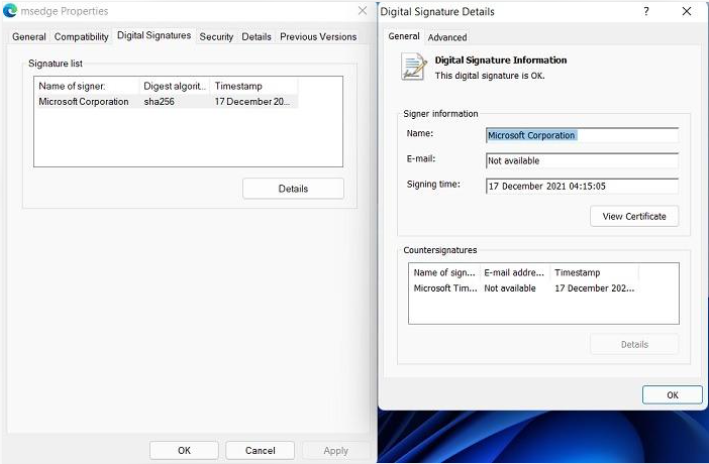
A Microsoft signature and expected Windows folder are reassuring signs. However, neither should replace a security scan if you notice suspicious behavior.
Warning Signs That May Indicate a Fake wmiprvse.exe
Pay attention if you notice any of the following:
| Warning sign | Why it matters |
| Unusual file location | An executable running from Downloads, Temp, or an unrelated application folder deserves investigation. |
| Missing or suspicious digital signature | An unexpected publisher or invalid signature may indicate an impersonated file. |
| Unusual network activity | Unexpected connections associated with the process may require further inspection. |
| Persistent high resource usage | A process that continually consumes significant CPU or memory may indicate a faulty provider or suspicious activity. |
| Multiple suspicious files | Other unfamiliar executables appearing alongside the process may suggest a wider security issue. |
Remember that high CPU usage or multiple instances alone do not prove malware infection. They can also result from legitimate Windows operations or poorly behaving applications.
Why Is wmiprvse.exe Using High CPU or Memory?
Although wmiprvse.exe normally uses relatively modest system resources, some situations can cause it to consume more CPU or memory than expected.
This can make your computer slower, increase fan noise, or cause applications to respond less quickly.
Here are some common explanations:
1. A Third-Party Application Is Sending Too Many WMI Requests
Some applications repeatedly request system information through WMI. Hardware monitoring utilities, security programs, and system management tools are examples.
If an application sends inefficient or excessive queries, the WMI provider handling those requests may consume significant resources.
2. A Faulty WMI Provider
A WMI provider is responsible for handling particular types of information requests. If a provider has a software bug or does not release resources properly, it can cause unusually high memory or CPU consumption.
3. Windows Background Activities
Windows regularly performs monitoring and management operations. During certain activities, WMI Provider Host may temporarily use additional resources.
Short CPU spikes are not necessarily a problem, especially if usage returns to normal afterward.
4. Software Compatibility Issues
An outdated hardware utility, monitoring application, or security program may not work correctly with your current Windows installation.
This can result in repeated WMI requests or unexpected background activity.
5. Malware or Suspicious Software
Although the original wmiprvse.exe is legitimate, malware can imitate its name or interact with WMI to perform unwanted activities.
If the executable is located outside the expected Windows directories or has other suspicious characteristics, investigate it rather than assuming it is safe.
How to Fix High CPU Usage Caused by wmiprvse.exe
If wmiprvse.exe consistently consumes excessive CPU or memory, you should identify the cause before making changes to Windows system components.
The following troubleshooting methods can help.
Method 1: Restart Your Computer
Restarting Windows is a simple first step that can resolve temporary problems involving background services and system processes.
Save your work, open the Start menu, select Power, and choose Restart.
After Windows starts again, open Task Manager and check whether WMI Provider Host is still consuming excessive resources.
If the problem returns regularly, continue with the following methods.
Method 2: Identify the Application Causing High WMI Usage
Rather than terminating wmiprvse.exe repeatedly, try to identify which application is sending excessive WMI requests.
Microsoft recommends examining WMI activity and matching the relevant process IDs (PIDs) to the applications responsible for the requests.
You can begin by checking Event Viewer:
- Press Windows + R.
- Type eventvwr.msc and press Enter.
- Expand Applications and Services Logs.
- Open Microsoft.
- Select Windows.
- Find WMI-Activity and open Operational.
- Review relevant events around the time the CPU usage increases.
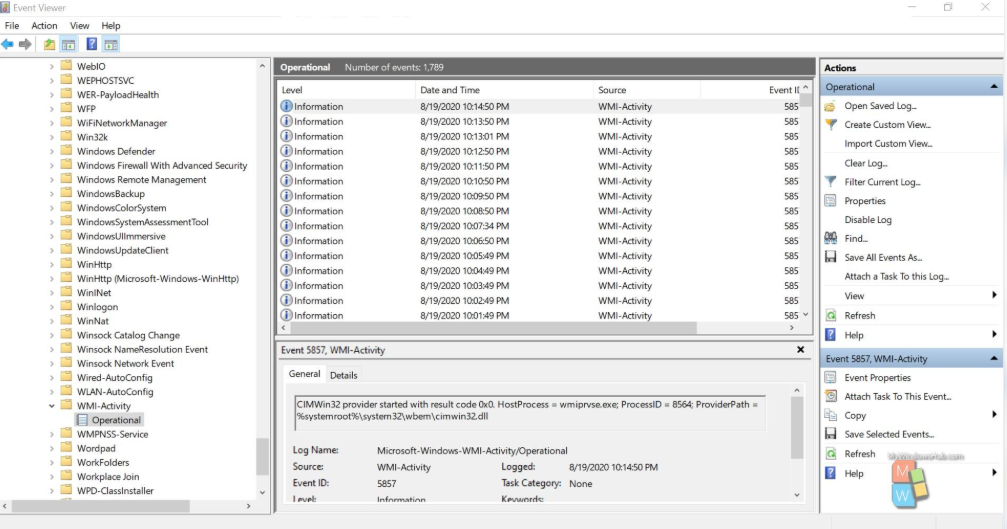
Look for information such as client process IDs, provider names, and repeated operations. These details can help narrow down the application responsible for the excessive activity.
For more advanced troubleshooting, Microsoft’s guidance explains how to match WMI provider processes with the client applications generating requests.
Microsoft Learn
Method 3: Update or Remove Problematic Applications
If you identify an application that repeatedly triggers excessive WMI activity, check whether an update is available.
Visit the application’s official website or use its built-in update feature.
If the problem started after installing a particular monitoring utility or hardware management application, temporarily uninstalling it can help determine whether it is responsible.
Avoid removing applications randomly. Focus on software that appeared around the time the problem started or that is associated with the WMI activity you identified.
Method 4: Run a Full Windows Security Scan
If you suspect malware, use Microsoft Defender Antivirus to scan your computer.
Follow these steps:
- Open Windows Security.
- Select Virus & threat protection.
- Choose Scan options.
- Select Full scan.
- Click Scan now.
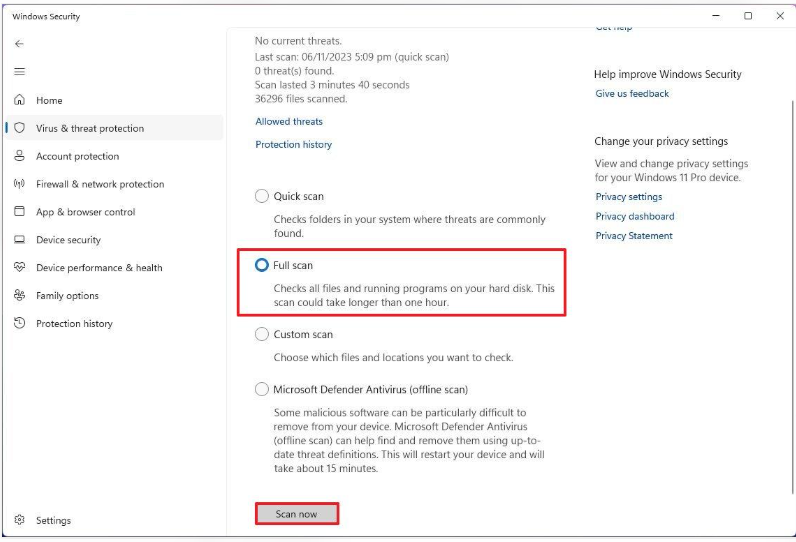
A full scan checks files and programs across your computer for potential threats.
If you have strong reasons to suspect persistent malware, consider using Microsoft Defender Offline. It scans your computer after restarting into a separate recovery environment, making it harder for some persistent threats to hide. Save your work before starting the scan.
Method 5: Install Available Windows Updates
Outdated Windows components can sometimes contribute to compatibility and system performance problems.
To check for updates:
- Open Settings.
- Select Windows Update.
- Click Check for updates.
- Install available updates.
- Restart your computer if required.
Keeping Windows updated helps maintain system stability and provides important security improvements.
Method 6: Restart the Windows Management Instrumentation Service
If the WMI service appears to be experiencing a temporary problem, restarting it may help.
However, this service supports Windows management functions, so restarting it can temporarily affect dependent services and applications.
To check its status:
- Press Windows + R.
- Type services.msc.
- Press Enter.
- Find Windows Management Instrumentation.
- Check its current status.
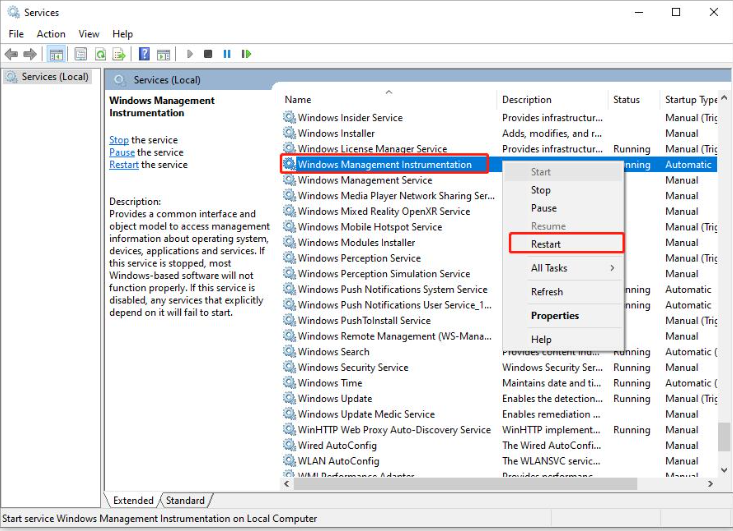
If you are troubleshooting a persistent issue, avoid repeatedly stopping this service or forcing WMI provider processes to close. First identify the application or provider causing the problem.
Microsoft’s troubleshooting documentation provides more advanced diagnostic steps for identifying problematic WMI providers and client processes.
Microsoft Learn
Should You Disable or Delete wmiprvse.exe?
No. You should not disable or delete the genuine wmiprvse.exe process.
It is an important part of Windows Management Instrumentation and supports system monitoring, hardware information retrieval, and administrative operations.
Removing or disabling it can interfere with applications and Windows components that depend on WMI.
If you are experiencing high CPU usage, investigate the application or provider responsible rather than deleting the executable.
If you discover a suspicious file using the same name, verify its location and scan it with trusted security software before taking action.
Can You Stop wmiprvse.exe From Running in the Background?
You generally should not try to prevent the legitimate WMI Provider Host from running.
Windows starts it when a WMI provider is required, and it may appear again whenever an application or operating system component requests information.
Instead of disabling the process, consider these steps:
| What you can do | Expected benefit |
| Close unnecessary monitoring applications | Reduces unnecessary background WMI requests. |
| Update third-party utilities | May fix software-related WMI problems. |
| Remove problematic applications | Stops requests generated by the identified application. |
| Scan for malware | Helps identify malicious software imitating system processes. |
| Keep Windows updated | Helps maintain compatibility and system stability. |
This approach addresses the underlying problem without interfering with essential Windows functionality.
wmiprvse.exe vs. svchost.exe: What Is the Difference?
Both wmiprvse.exe and svchost.exe are legitimate Windows processes, but they perform different roles.
Understanding the distinction can help when investigating unfamiliar processes in Task Manager.
| Feature | wmiprvse.exe | svchost.exe |
| Full name | WMI Provider Host | Service Host |
| Main purpose | Hosts WMI providers | Hosts Windows services |
| Primary role | Handles WMI information requests | Runs services that use shared service-host processes |
| Background activity | System monitoring and management requests | Windows service operations |
| Multiple instances | Yes | Yes |
| Essential Windows component | Yes | Yes |
The main difference is that wmiprvse.exe hosts WMI providers, while svchost.exe hosts Windows services.
Both are normal parts of Windows, provided the files are genuine and behaving as expected.
Frequently Asked Questions
1. What is WmiPrvSE.exe used for?
WmiPrvSE.exe is the Windows Management Instrumentation Provider Host, a system process that allows Windows and applications to access hardware, software, and system information. It supports system monitoring, administrative tasks, and device management.
2. Is WmiPrvSE.exe safe?
Yes, WmiPrvSE.exe is a legitimate Windows process when running from the correct Windows system directory. However, malware can imitate its name, so checking its file location and digital signature is recommended.
3. Why is WmiPrvSE.exe taking high CPU usage?
High CPU usage can occur when applications send excessive WMI requests, a provider malfunctions, or background Windows tasks require additional resources. Identifying the application responsible through Event Viewer can help resolve the issue.
4. Is it safe to disable WMI Provider Host?
Disabling WMI Provider Host is not recommended because Windows and many applications depend on it for system monitoring and management. Instead, identify and fix the provider or application causing excessive resource usage.
5. Why is 90% of my CPU being used?
CPU usage reaching 90% may result from demanding applications, background processes, faulty drivers, malware, or excessive WMI requests. Check Task Manager to identify the process consuming the most resources before troubleshooting further.
6. How to repair corrupted WMI?
You can start by running sfc /scannow and DISM /Online /Cleanup-Image /RestoreHealth in an administrator Command Prompt. If WMI remains damaged, investigate the WMI repository using Microsoft’s repair guidance rather than resetting or deleting it unnecessarily.
Final Thoughts
The presence of wmiprvse.exe in Windows Task Manager is usually nothing to worry about. It is a legitimate Windows component that supports system monitoring, hardware management, and communication between applications and the operating system.
However, persistent high CPU usage, unusual file locations, or suspicious activity deserve further investigation. Checking the executable’s location, reviewing WMI activity, updating problematic applications, and running a security scan can help identify potential issues.
The most important thing is to avoid deleting or disabling genuine Windows components without understanding their purpose. With the right troubleshooting approach, you can maintain system performance without interfering with essential Windows functions.