


Introduction
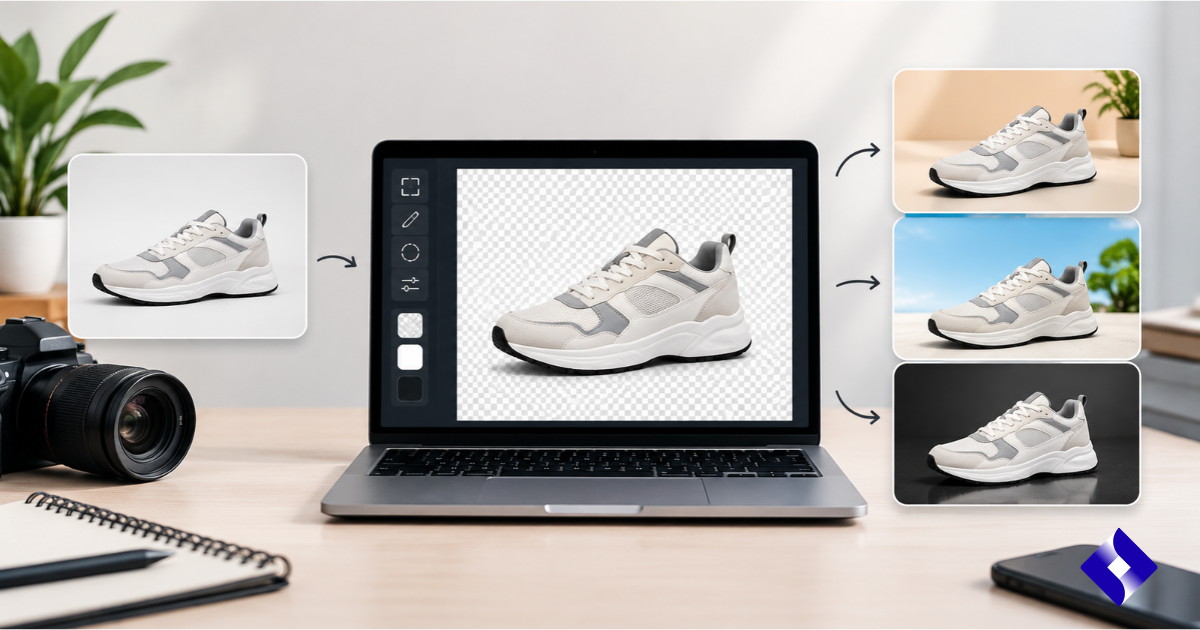
A clean image background can make a product photo look more professional, help a portrait stand out, and make content more suitable for social media. However, removing unwanted objects or replacing a distracting background manually can take time, especially when the image contains detailed edges such as hair, fabric, or small product parts.
Pixelcut background tools are designed to simplify this process with AI-powered image editing. Users can remove an existing background, place a subject against a different scene, or create cleaner product images without needing advanced photo-editing skills.
Whether you are an online seller, content creator, small business owner, or casual photographer, understanding how the Pixelcut background editor works can help you decide when it is useful and where manual adjustments may still be necessary.
Table of Contents
- What Is Pixelcut Background?
- How Does Pixelcut Background Removal Work?
- How to Remove a Background Using Pixelcut
- How to Change or Add a New Background
- Key Features of Pixelcut Background Tools
- Benefits of Using Pixelcut
- Common Use Cases
- Pros and Cons
- Tips for Better Results
- Frequently Asked Questions
- Conclusion
- Key Takeaways
What Is Pixelcut Background?
Pixelcut is an AI-powered image editing platform that offers tools for tasks such as background removal, product photography, and image enhancement. Its background features help separate the main subject from its surroundings, making it easier to create transparent images or place subjects in new visual settings.
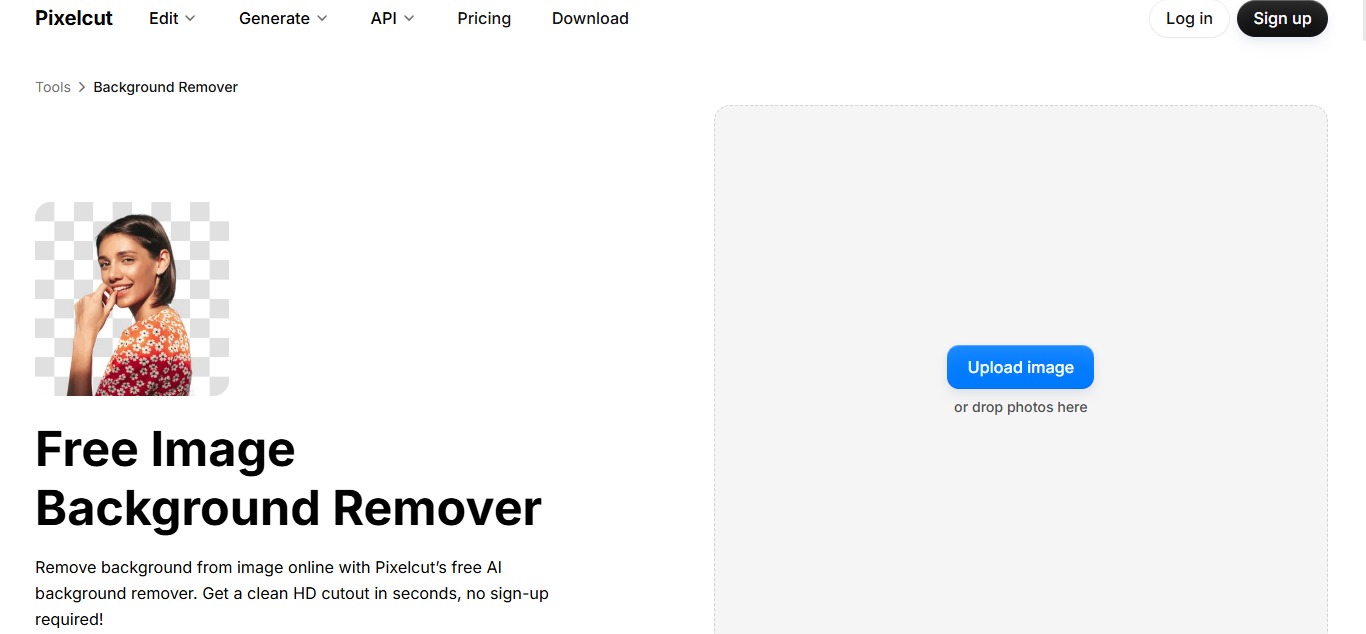
For example, an online seller can remove a cluttered room from a product photograph and replace it with a plain white background. Similarly, a content creator can isolate a person and use a different background for a promotional graphic or social media post.
The exact tools, export options, and usage limits may vary depending on the version of Pixelcut and the user’s plan. It is therefore worth checking the current options in the app or on the official website before starting a project.
How Does Pixelcut Background Removal Work?
Pixelcut uses AI to identify the main subject of an image and distinguish it from the surrounding background. The tool then creates a cutout, allowing the user to keep the subject while removing or replacing the original surroundings.
This process is particularly helpful when editing product photographs, portraits, clothing images, and other pictures with a clearly defined subject. Results can vary depending on image quality, lighting, contrast, and the complexity of the subject’s edges.
For example, a dark handbag photographed against a light background may be relatively easy to isolate. However, a transparent glass object photographed against a similarly colored surface may require more careful checking.
How to Remove a Background Using Pixelcut
Removing an image background with Pixelcut generally involves a few straightforward steps. The web version and mobile app may have slightly different layouts, but the basic process is similar.

Step 1: Upload Your Image
Open the Pixelcut background remover and upload the photo you want to edit. Choose an image with a clear subject and sufficient resolution to help the AI identify important details.
Step 2: Let the AI Remove the Background
Pixelcut automatically processes the image and separates the main subject from the surrounding area. Depending on the available editing options, the result may appear on a plain background or with the background removed.
Step 3: Refine the Edges
Inspect areas such as hair, fingers, clothing, jewelry, and small product details. Pixelcut’s erase and restore brushes can help correct parts of the image that the automatic selection misses or removes incorrectly.
Step 4: Choose Your Output
You can keep the subject isolated, use a solid background, or continue editing with a replacement image or scene. If you need transparency, check that the selected export format supports it.
Step 5: Download the Finished Image
Review the final result at full size before saving it. For a transparent background, PNG is generally a suitable choice; for ordinary photographs, JPEG may be more appropriate when transparency is not needed.
How to Change or Add a New Background
Removing a background is only the first part of the process. Replacing it can make a photograph more suitable for a product listing, advertisement, profile picture, or creative project.
Pixelcut provides background replacement options that can include solid colors, gradients, uploaded photographs, and AI-generated scenes, depending on the tool and plan.
Use a Solid Color Background
A white or light-gray background works well for many product photographs because it keeps attention on the item. A brand color can also help create a consistent appearance across marketing materials.
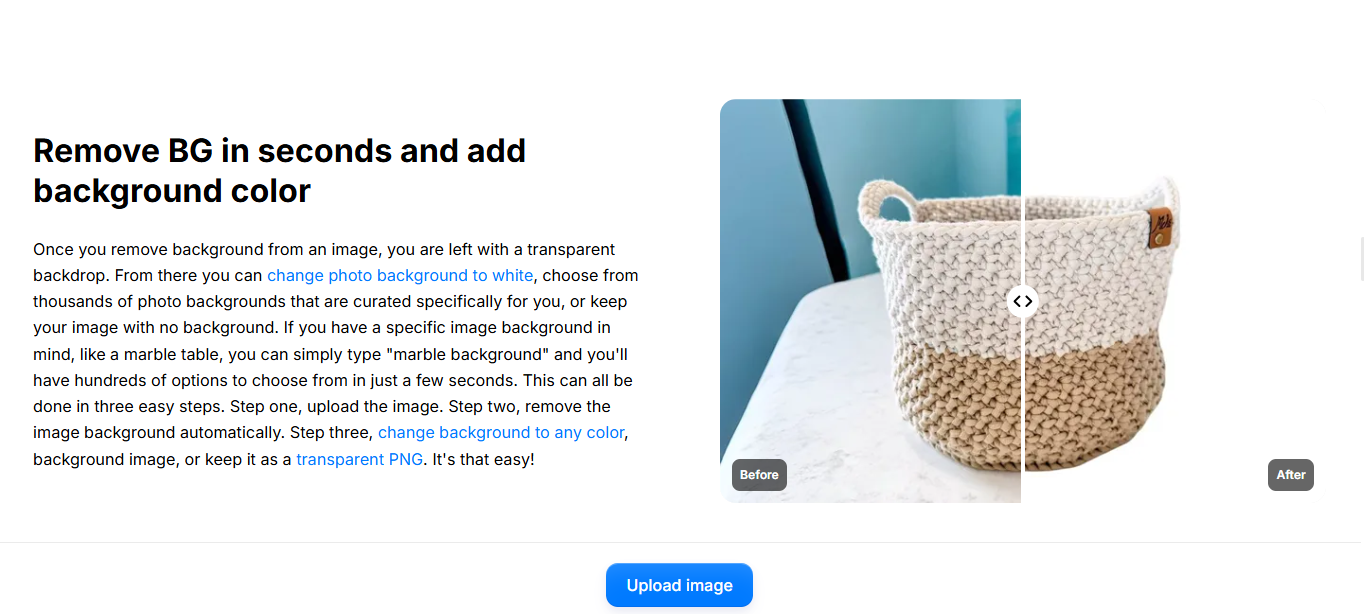 Before using a particular background for an online marketplace, check the platform’s image requirements. Some marketplaces specify background colors, image dimensions, and restrictions on additional design elements.
Replace It With a Photograph
You can place a cutout over a different photograph to create a new setting. For instance, a skincare product might be placed against a clean bathroom scene, while a travel accessory could be shown against an outdoor backdrop.
Make sure the lighting, perspective, and scale of the subject match the replacement image. Otherwise, the final composition may look artificial.
Generate an AI Background
AI background tools can create a new scene from a description rather than requiring a suitable photograph. This can be useful for creating lifestyle-style product imagery without arranging a physical photoshoot.
However, generated scenes may introduce unrealistic shadows, reflections, or visual details. Always inspect the final image, especially when it represents a real product that customers will purchase.
Key Features of Pixelcut Background Tools
Pixelcut’s background-related capabilities fit into a broader image-editing workflow. The following table summarizes the main functions and their practical uses. Availability can vary across devices and plans.
Mission, Vision, and Story+2
| Feature | What It Does | Common Use |
| AI background removal | Separates a subject from its original surroundings | Product photos and portraits |
| Transparent background | Creates an isolated subject for use in other designs | Logos, product cutouts and graphics |
| Background replacement | Adds a color, gradient, or different image | Marketing and social media |
| AI-generated backgrounds | Creates a scene around a subject | Lifestyle product images |
| Erase and restore brushes | Helps refine the selected subject | Fixing imperfect cutouts |
| Background blur | Softens the surroundings of a photo | Portraits and visual content |
| Batch editing | Applies supported edits to multiple images | Large product catalogs |
These features can reduce the need to switch between several editing applications. Nevertheless, automated editing does not guarantee perfect results for every photograph.
Benefits of Using Pixelcut Background
Pixelcut can be useful when you need to prepare images quickly without learning advanced photo-editing software. Its main benefits are convenience, flexibility, and the ability to create consistent visuals.
Saves Time on Routine Editing
Manually tracing the edges of a subject can be tedious, particularly when preparing many product photographs. Automated background removal simplifies the initial selection, leaving the user to focus on corrections and presentation.
Makes Product Photos More Consistent
Online sellers often need multiple images with similar backgrounds, framing, and lighting. A background editor can help standardize product photographs so that a catalog looks more organized.
Supports Different Creative Projects
The same isolated image can be used in advertisements, thumbnails, presentations, promotional graphics, and social media posts. Changing the background also makes it possible to reuse a photograph in different contexts.
Reduces the Need for Advanced Editing Skills
Users who are unfamiliar with professional image-editing software can still create basic cutouts and background replacements. More complex composites may still require experience with layers, lighting, and detailed masking.
Offers Web and Mobile Workflows
Pixelcut is available through its website and mobile apps, making it practical for users who prefer editing on a computer or phone. The exact tools and export options depend on the version being used.
Common Use Cases for Pixelcut Background
The best background depends on the purpose of the image, the audience, and the platform where it will appear.
| User Type | Recommended Background Approach | Why It Helps |
| E-commerce sellers | White or neutral backgrounds | Keeps attention on the product |
| Social media creators | Colorful or themed scenes | Supports a recognizable visual style |
| Freelance designers | Transparent cutouts | Makes subjects easier to place in layouts |
| Small business owners | Consistent brand colors | Creates a more unified visual identity |
| Photographers | Selective background replacement | Helps improve images taken in distracting locations |
| Content publishers | Clean, relevant scenes | Creates suitable visuals for articles and thumbnails |
For commercial use, make sure you have permission to use any uploaded photographs and replacement backgrounds. Also check the terms of the relevant marketplace or advertising platform before publishing edited images.
Pixelcut Background: Pros and Cons
Pixelcut can make everyday image editing more accessible, but it is not a complete replacement for manual editing in every situation.
| Pros | Cons |
| Quick AI-powered background removal | Complex edges may need manual corrections |
| Accessible to beginners | Results depend on the original image |
| Supports background replacement and creative scenes | AI-generated scenes may look unrealistic |
| Useful for product images and marketing content | Some features may have usage limits or require a paid plan |
| Available on web and mobile | Export options may vary by tool or subscription |
Pixelcut is a practical choice for routine background editing, especially when speed matters. For highly detailed composites, professional retouching, or images that require precise control over every edge, a more advanced editor may be preferable.
Tips for Getting Better Results With Pixelcut Background
The quality of the original photograph has a significant effect on the finished image. A few simple adjustments can help produce cleaner, more natural-looking results.
Start With a Clear Photograph
Use a sharp image with good lighting and a visible distinction between the subject and its surroundings. Blurry edges and poor contrast can make accurate background removal more difficult.
Check the Edges Carefully
Zoom in around hair, clothing, handles, jewelry, and other fine details. Remove unwanted background fragments and restore any parts of the subject that were accidentally erased.
Match the Background to the Subject
Choose a replacement scene that complements the subject’s color, lighting, and perspective. A product photographed under soft studio lighting may look out of place against a dramatically lit outdoor scene.
Avoid Excessive Effects
Strong shadows, saturated colors, and complicated backgrounds can distract from the subject. For product photography, a simple composition often communicates more clearly than a heavily edited image.
Export in the Right Format
Use PNG when transparency is important, provided the export supports an alpha channel. Use JPEG for standard photographs where a solid background is acceptable, and check image dimensions before uploading to a website or marketplace.
Frequently Asked Questions About Pixelcut Background
1. What is Pixelcut background used for?
Pixelcut background tools help remove unwanted surroundings, isolate subjects, and add new backgrounds to images. They are commonly used for product photography, portraits, social media graphics, and online store listings.
2. Is Pixelcut background remover free?
Pixelcut offers free access to some core tools, but usage limits and paid features may apply. Check the official Pixelcut website for the current plan details.
3. How do I change the background in Pixelcut?
Upload your image, remove its existing background, and select a replacement color, gradient, photograph, or available AI-generated scene. Review the edges and save the finished image.
4. Can Pixelcut make a transparent background?
Yes. Pixelcut supports background removal that can produce isolated subjects with transparency. Choose a compatible export option, such as a transparent PNG, and verify that the background is actually transparent after saving.
5. Can I use Pixelcut background tools on my phone?
Yes. Pixelcut offers mobile apps for supported iOS and Android devices, as well as a web-based workflow. Available tools can differ by device, app version, and plan.
6. Is Pixelcut suitable for product photography?
Yes. It can help sellers create consistent product images by removing distracting surroundings and adding neutral or lifestyle-style backgrounds. Sellers should still check product details carefully and follow the image requirements of their chosen marketplace.
7. Why does Pixelcut sometimes remove part of the subject?
AI can confuse a subject with its background when colors, textures, or edges are similar. Try using a clearer source image and refine the result with erase or restore tools when available.
8. Is Pixelcut better than manual background editing?
Pixelcut can be faster and easier for straightforward edits, while manual editing provides greater control over complex edges, shadows, and detailed compositions. The better option depends on the image, the required accuracy, and the time available.
Conclusion
Pixelcut background tools offer a convenient way to remove unwanted surroundings, create transparent cutouts, and customize images for different purposes. They are particularly useful for online sellers, content creators, and small businesses that need clean visuals without spending too much time on manual editing.
However, automatic processing should be treated as a starting point rather than a guarantee of perfection. Checking edges, matching lighting, choosing an appropriate background, and exporting in the correct format can make a noticeable difference to the final result.
If you regularly prepare product photos or promotional graphics, Pixelcut is worth exploring as part of your image-editing workflow. Start with a simple image, test the available features, and assess whether the output meets your quality requirements before using it for important commercial projects.
Key Takeaways
| Topic | Main Point |
| Main purpose | Remove, replace, or customize image backgrounds |
| Best for | Product photos, portraits, and marketing visuals |
| Ease of use | Suitable for beginners and routine editing |
| Main limitation | Complex edges and artificial-looking scenes may need corrections |
| Transparency | Use a compatible format such as PNG |
| Cost | Some tools are free to try; other features or higher usage limits may require a paid plan |
| Best practice | Review every image before publishing |